
This guide provides a comprehensive, step-by-step walkthrough for merchants to integrate the JCC Payments Gateway with their Oveit account. By following these instructions, you will configure your API credentials, general merchant settings, and real-time payment notifications (IPN). This will enable you to sell tickets and/or other goods and services.
Prerequisite: You must have an active JCC Gateway merchant account before starting this process.
Step 1: Retrieve Your API Credentials #
First, you need to collect the specific credentials required for server-to-server communication.
- Log in to the JCC Portal: Access the JCC Gateway portal using your merchant credentials.
- Locate API User & Password: Find the API-specific user credentials in your account settings.
- Note: Your API username will always end with the “-api” suffix (e.g.,
oveit-api).
- Note: Your API username will always end with the “-api” suffix (e.g.,
- Secure Storage: Record the API username and password securely; these should never be shared publicly or used in client-side code.
Step 2: Configure Merchant General Settings #
Ensure your JCC portal settings are optimized to work seamlessly with Oveit’s order processing.
- Navigate to Settings: In the left-hand menu, go to Settings > Merchant > General settings.
- Apply Configuration: Set the following values exactly as shown:
| Autocomplete | Enabled (checked) |
| Show final page | Disabled (unchecked) |
| Auto-redirect after (sec) | Leave blank or set as needed |
| Session duration (min) | 1 440 (default) |
| Two-stage payment | Disabled (unchecked) |
| Google Pay (browser) | Enabled (checked) |
| Google Pay (mobile) | Enabled (checked) |
| Apple Pay | Enabled (checked) |
⚠ Warning: You must disable “Two-stage payment”. If enabled, payments will only be authorized and not captured, causing orders to stay in a “pending” state indefinitely.
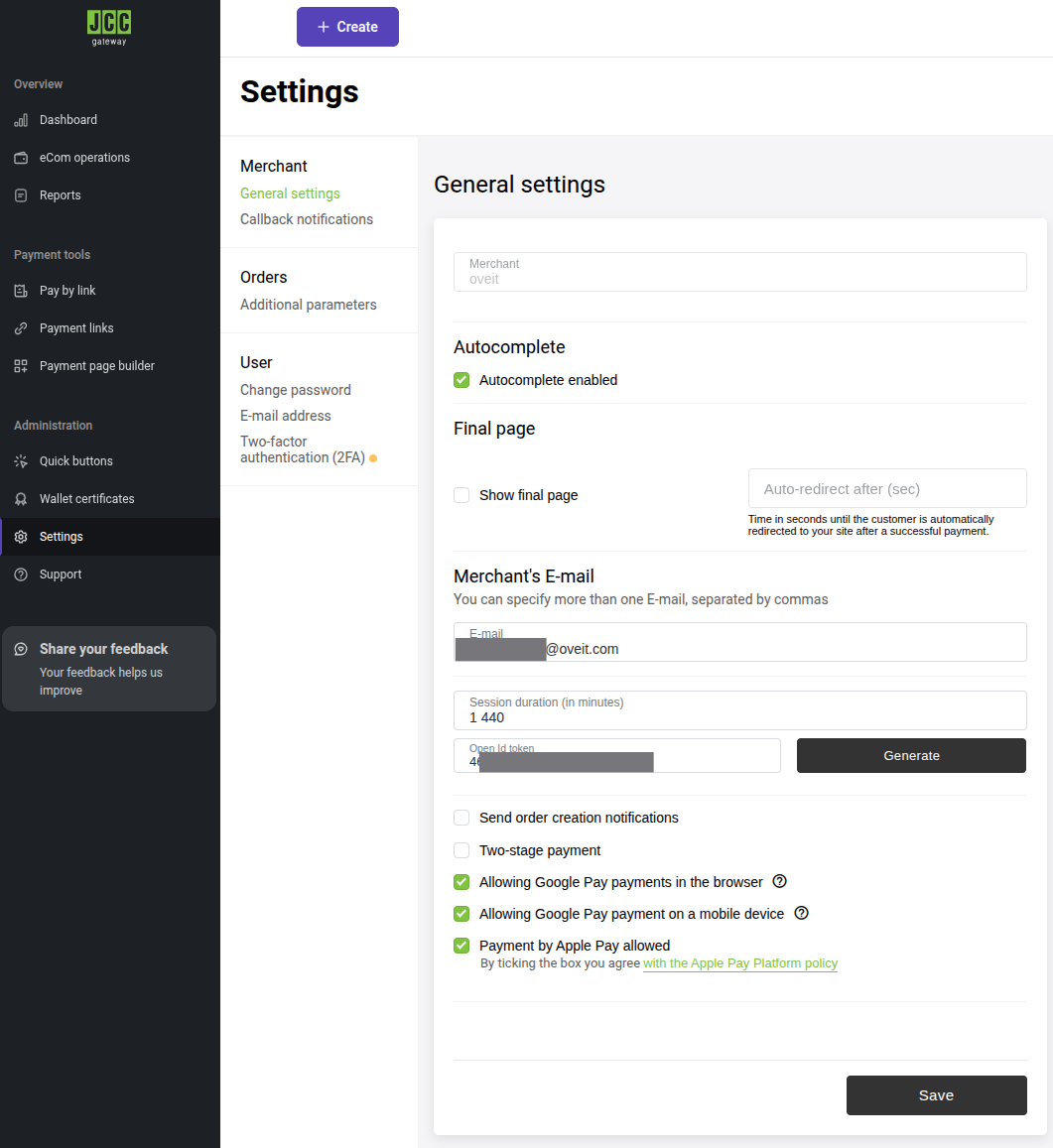
3. Save: Click Save at the bottom of the page.
Step 3: Configure Callback (IPN) Notifications #
Callback notifications (Instant Payment Notifications) ensure Oveit receives real-time updates for deposits, refunds, or reversals.
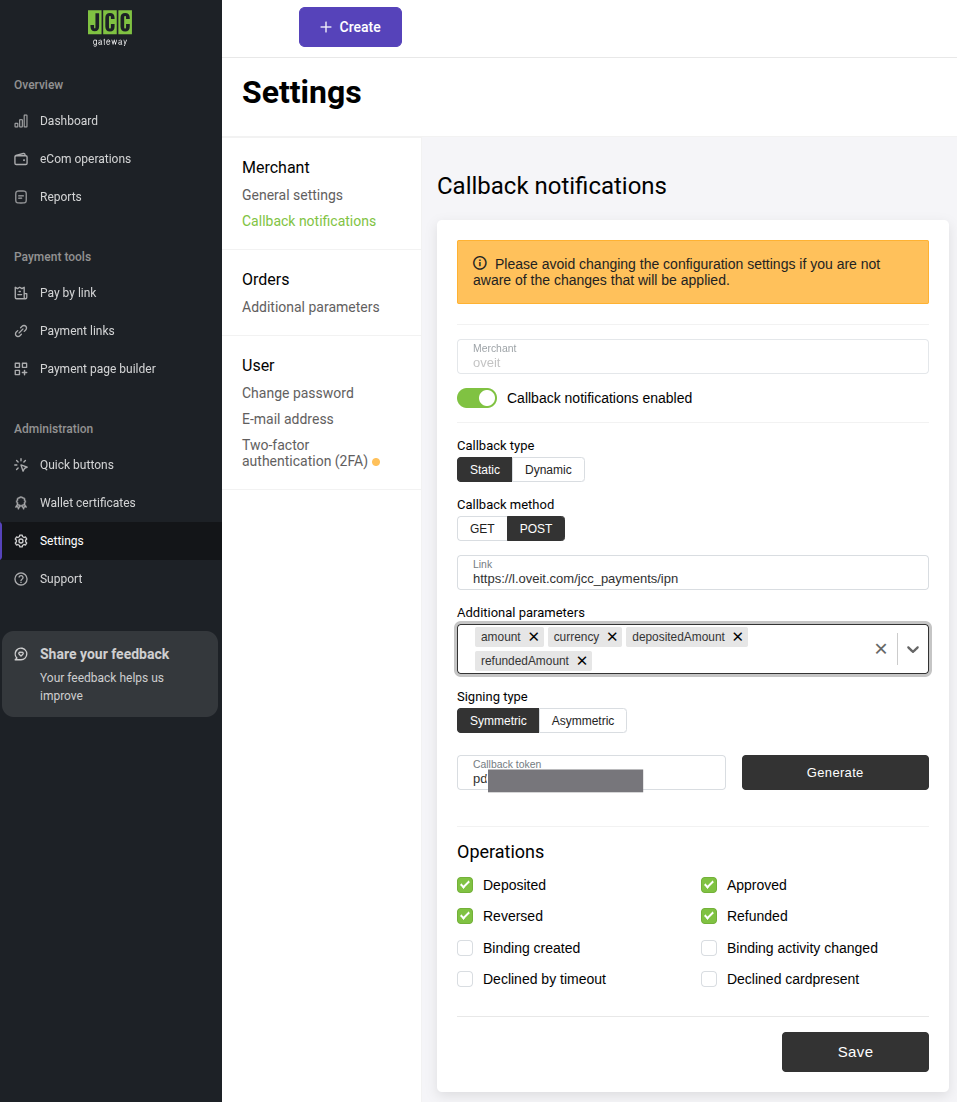
- Navigate to Callbacks: Go to Settings > Merchant > Callback notifications.
- Configure Core Settings: Use the following parameters (exactly as described below):
- Callback notifications enabled: ON
- Callback type: Static
- Callback method: POST
- Link (IPN URL):
https://l.oveit.com/jcc_payments/ipn - Signing type: Symmetric
- Add Additional Parameters: You must manually add these four parameters to the Additional parameters field:
amountcurrencydepositedAmountrefundedAmount
- Generate Callback Token: Scroll to the Callback token field.
- Click Generate if the field is empty.
- ⚠Important: Copy this token immediately. It is only displayed once and is required for the Oveit configuration. If you lose it, you will need to regenerate it – which will break any existing integration until the new token is updated everywhere it is used.
- Select Operations: Under the Operations section, check the following:
- Deposited
- Approved
- Reversed
- Refunded
- Save: Click Save to apply these changes.
Step 4: Finalize Integration in Oveit #
Now that the JCC portal is ready, enter the following details into your Oveit payment configuration:
- API Username: The user ending in
-api. - API Password: The corresponding API password.
- Callback Token: The Symmetric token generated in Step 3.4.
- IPN URL (must match what is set in the portal):
https://l.oveit.com/jcc_payments/ipn.
Pre-Live Checklist #
Before processing live transactions, verify your setup:
| API credentials (username ends in -api) retrieved and stored securely |
| General Settings: Autocomplete enabled |
| General Settings: Two-stage payment DISABLED |
| Callback notifications toggle: ON |
| Callback type: Static |
| Callback method: POST |
| IPN Link set to: https://l.oveit.com/jcc_payments/ipn |
| Additional parameters: amount, currency, depositedAmount, refundedAmount |
| Signing type: Symmetric |
| Callback token generated and stored securely |
| Operations: Deposited, Approved, Reversed, Refunded all checked |
| All settings saved |
Setup complete! Your JCC Payments Gateway is now ready to process transactions through Oveit.