
Managing cancellations is a standard part of managing events and attractions. Whether a guest requests a refund or an administrative change is required, Oveit allows you to handle refunds for both Online Credit Card payments and Bank Transfers.
This guide covers the step-by-step process for locating transaction IDs, processing refunds through your payment gateway, and finalizing cancellations in the Oveit dashboard.
1. How to Refund Credit Card Orders (Automatic Sync) #
If your attendee paid online using a credit card (via processors like Stripe, PayPal, or Netopia), the refund process is linked directly to the transaction ID. You do not need to manually cancel the ticket in Oveit; the system handles this once the money is refunded at the source.
Step 1: Locate the Order and Transaction ID
- Log in to your Oveit Dashboard.
- Navigate to the Orders section and search for the relevant order.
- Scroll down to the Payment Transactions section (located at the bottom of the order view).
- Copy the Transaction ID listed there.
(See example below: The ID is located in the first column under Payment Transactions)
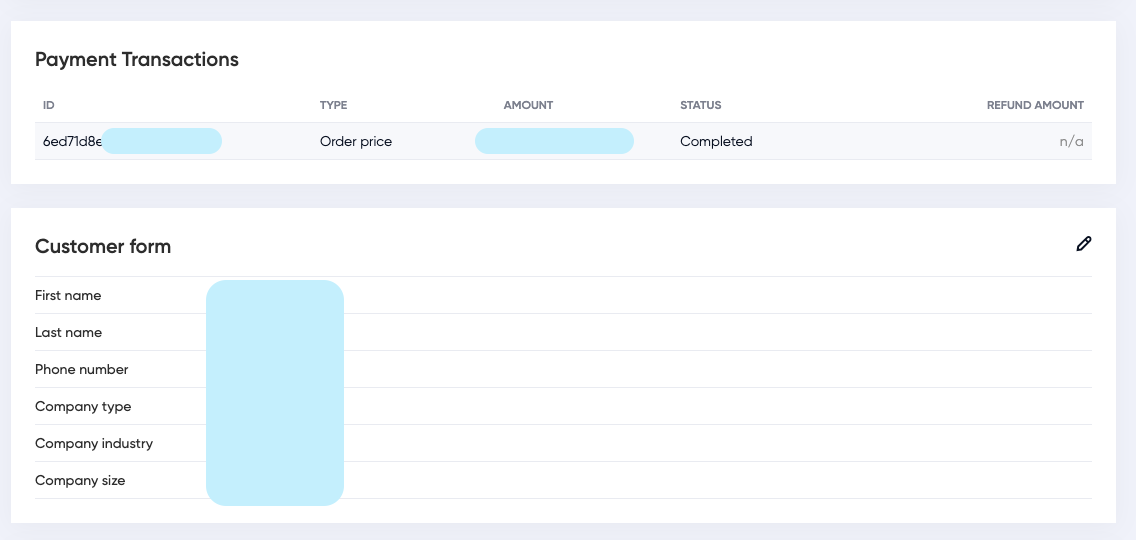
Oveit order dashboard showing Payment Transactions section with Transaction ID highlighted.
Step 2: Process the Refund in Your Payment Processor
- Log in to your payment processor account (e.g., Stripe, PayPal, Netopia).
- Paste the Transaction ID into the search bar to find the specific payment.
- Issue the Refund or Cancellation directly within the payment processor interface.
Step 3: Automatic System Update Once the refund is completed in the payment processor, Oveit automatically detects the event:
- The Oveit order status changes to Cancelled.
- The associated tickets are voided immediately.
- An automated email is sent to the guest confirming the cancellation.
2. How to Refund Bank Transfers (Manual Cancellation) #
For orders paid via Bank Transfer or marked manually as “Completed” by an admin, the automated sync does not apply. You must perform the refund via your bank and manually update the order status in Oveit.
Step 1: Process the Financial Refund Log in to your banking application and manually transfer the funds back to the customer’s bank account.
Step 2: Cancel the Order in Oveit
- Return to the Oveit Dashboard and open the specific order.
- Locate the red Cancel order button in the top-right corner of the screen.
- Click the button and confirm the action in the pop-up prompt.
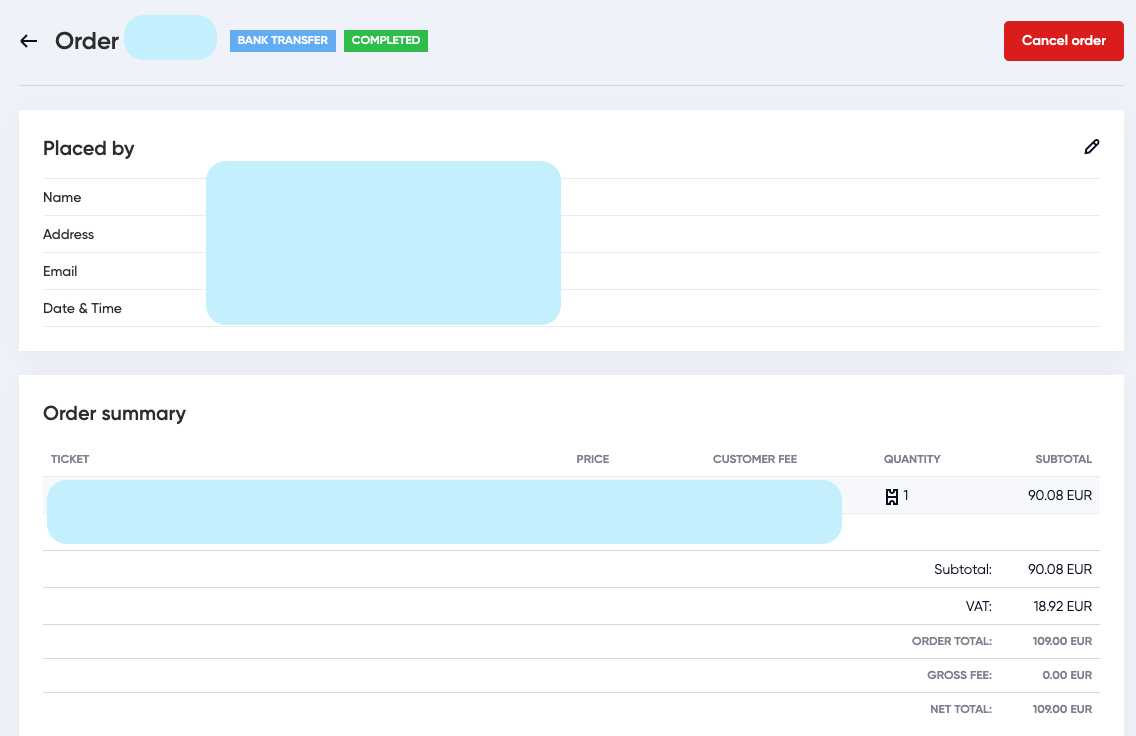
Oveit order details page highlighting the red Cancel Order button for bank transfer payments.
Step 3: Confirmation Once you confirm the cancellation manually:
- The Order status updates to Cancelled.
- The tickets are removed from the active list.
- The system logs the cancellation for your reports.
| Payment Type | Where to Refund Money | Where to Cancel Ticket |
| Credit Card | Payment Processor (Stripe/PayPal) | Automatic (No action needed) |
| Bank Transfer | Your Bank App | Manual (Click “Cancel order” in Oveit) |